

Basic Operations
Basic Operations
Stylus and Button Controls
Due to the unique PureView display technology, you can interact with your eNote only through the stylus and physical buttons; finger touch is not available. This section will guide you through these two methods for optimal interaction. Using both the stylus and buttons together provides the best experience. 
Stylus Controls
Imagine an invisible line running through the center of the home screen, dividing it into two interactive areas:
-
Tap the top left side to view notifications.

-
Tap the top right side to open the dropdown menu, where you can quickly access settings and commonly used functions.
Note: The dropdown menu is not available when you are in handwriting notes or reading annotation mode.

l If you are left-handed, tap Rotate - 180° to rotate the screen, allowing you to hold the physical buttons with your right hand while writing with your left. The Quick Button List will also automatically rotate 180°: RO 180°.
Physical Button Controls
The quick access buttons are available in three customizable modes: Default Mode, Notes Mode, and Reading Mode. Here’s how to configure and use them:
- Showcase:
Pressing the first button will bring up a sidebar displaying the current function assigned to each button.
- Customization:
To customize, tap “Edit” at the bottom of this display to assign different functions to each button.
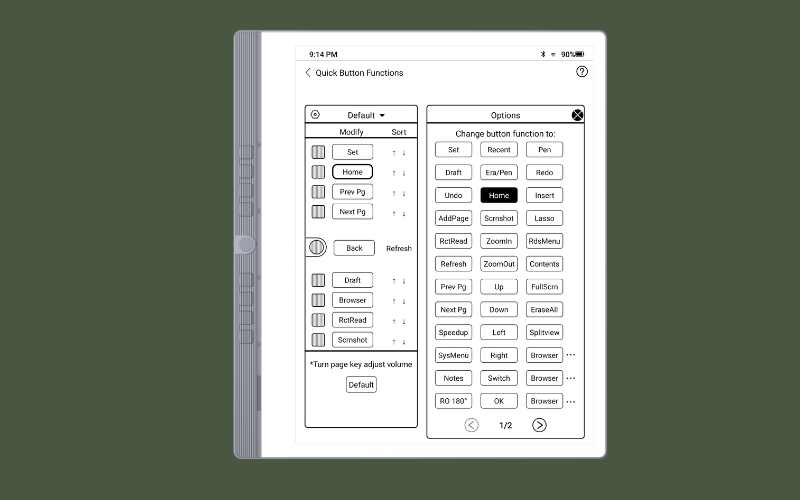
Note: Unmodifiable Back Button: The round button is dedicated to the Back function and cannot be customized. A long press on this button will refresh the screen.
3. Mode Overview:
Each mode adapts the button functions according to your current activity:
- Default Mode: Applied during general, non-note-taking and non-reading use.
- Notes Mode: Automatically activates when in note-taking mode.
- Reading Mode: Activates during reading mode for easy navigation.

Homepage

The homepage consists of the following elements:
- Navigation:
- By default, the vertical navigation bar includes shortcuts to Home, Notes, Books, Files, Apps, and Settings.
- Four additional slots are available for quick access to your most-used apps. To add an app, long-press the app in the “Apps” menu and select Add to Navigation. The selected app will then appear on the left vertical navigation bar.
- Search:
Use this feature to search for notes, books, or documents stored on the device.
- Calendar & Wallpaper:
Here displays the current date.
Tap the icon “ ” to customize the wallpaper, screensaver and power-off image.
-
Calendar App:
Tap the calendar icon to open the Calendar app. - Widgets:
- Notes Widget: Displays your recent notes.
- Bookshelf Widget: Shows recently read books.
- Email Widget: Lists recent emails.
- Apps Widget: Displays shortcuts to your customized frequently used apps.
Resetting to Default Settings
If you need to reset your Penstar eNote to its original factory settings, please follow these steps carefully:
-
Open Settings
Tap the “Settings” icon located at the bottom-left corner of the screen. -
Navigate to System
In the Settings menu, tap System. - Choose Reset Option
You’ll see two reset options:
- Reset Default Settings: This will restore the device settings to their defaults. You can choose whether or not to include the screensaver or power-off image in this reset.
- Factory Reset: This option erases all data and settings on your Penstar eNote, returning it to its original factory state.
Important: Both reset options are irreversible. Be sure to back up any important information before proceeding!


2 comments
Hello – I don’t like the pen – I always seem to press the button down by the nib and it erases what I am trying to write. How do I turn it off for good? This would be helpful or do you have another pen that does not have the button. Thank you, Richard
Do I need to register my device or create a login to use it?