

How to transfer files between your Penstar eNote and other devices?
File Transfer
This section will guide you on how to transfer and sync files between your Penstar eNote and other devices, such as your laptop, mobile phone, or iPad.
File Transfer Options
You can transfer files using one of the following methods:
- Wi-Fi Transfer (Recommended)
- Bluetooth
- Cable Connection (to Laptop)
Note: We recommend Wi-Fi Transfer for most situations, as it’s typically faster than Bluetooth and more convenient than a cable connection.
Using Wi-Fi Transfer
To use Wi-Fi Transfer, ensure both your Penstar device and the other device (e.g., your laptop or mobile phone) are connected to the same Wi-Fi network.
Step 1. Start Wi-Fi Transfer
- Open the Wi-Fi Transfer app on your Penstar eNote.

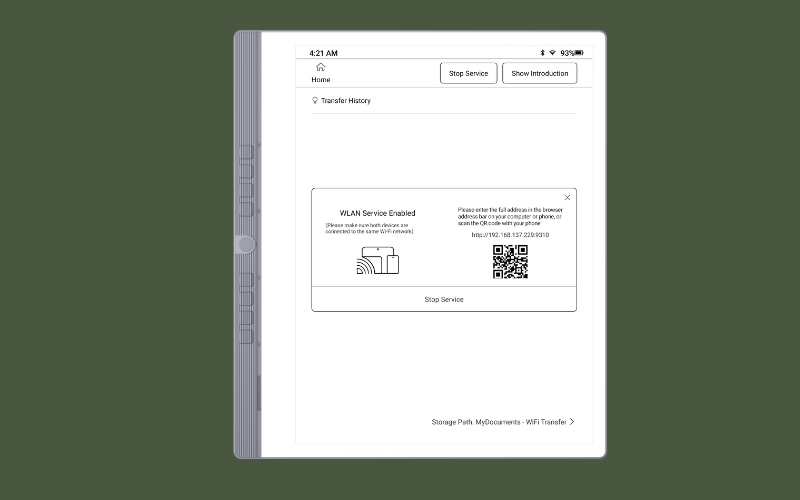
- Tap Start Wi-Fi Transfer. A web address will appear on the screen.
Step 2. Connect via Web Browser
On your computer or mobile device, open a web browser and enter the address displayed on your Penstar screen. This establishes the connection.

Step 3. Transfer Files
Wi-Fi Transfer supports two-way file transfers:
- Send Files to Penstar: Transfer files from your computer or mobile device to your Penstar eNote.
- Receive Files from Penstar: Download files from your Penstar eNote to your computer or mobile device.
Step 4. End Wi-Fi Transfer
When finished, tap Stop Service on your Penstar device to end the Wi-Fi Transfer session.
Important Tips for Wi-Fi Transfer
- Keep the Wi-Fi Transfer Screen Open: Keep the Wi-Fi Transfer screen open on your Penstar eNote during the entire process, and ensure a stable Wi-Fi connection.
- Handling Cached Pages: If you encounter a cached page on the transfer website, try refreshing the page after reconnecting Wi-Fi on your eNote. This will ensure smooth file uploads and downloads.
By following these steps, you can easily transfer files between your Penstar eNote and other devices using Wi-Fi Transfer.
How to Transfer Data on a Mac?
Currently, USB cable transfer is not supported for Mac computers. If you’re using a Mac, please try one of the following methods to transfer files:
l Wi-Fi Transfer: This works the same way as described earlier in the guide.
l App: LocalSend: You can use the free and secure LocalSend app to transfer files between your eNote and Mac.
To get started, download the Mac & Android versions of LocalSend here:
https://localsend.org/zh-CN/download
We'll use a Mac as an example in the demonstration below.


1 comment